Video aspect ratio: portrait or square?
Choose a video aspect ratio by checking what the crop preserves. Compare portrait and square frames using a calculated 1600 by 900 image example, understand the studio's animated zoom, and review captions separately before exporting versions for different placements and their file requirements.
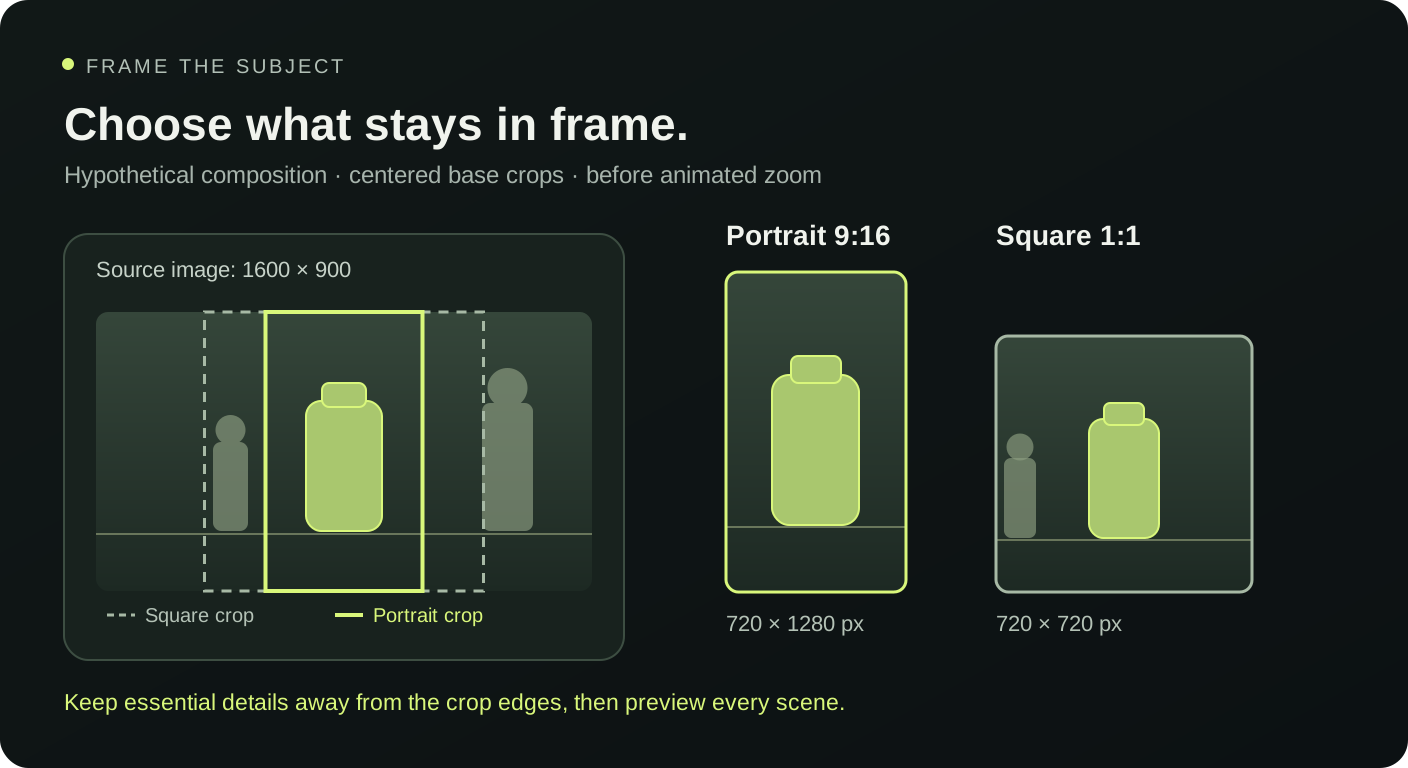
Choose a video aspect ratio around the subject
Your video aspect ratio determines the shape of the frame, so choose it by looking at the subject and the intended placement together. A tall frame can suit an upright object or a centrally composed portrait. A square frame can leave more horizontal context around a tabletop arrangement. Neither shape repairs an image whose important detail sits outside the visible crop.
Check the destination's upload requirements, then compare each preview. Hypit.me offers portrait and square output. Before writing captions, decide whether the image needs surrounding space. A cup beside several preparation tools tells a different story when the tools disappear beyond the edges.
Separate the frame shape from pixel dimensions
A video aspect ratio describes width compared with height. A 9:16 video is nine units wide for every sixteen units tall. A 1:1 video has equal width and height. Pixel dimensions describe the actual number of image samples across each direction. A 720 by 1280 frame and a 1080 by 1920 frame share a shape, but they contain different numbers of pixels.
The studio exports portrait at 720 by 1280 and square at 720 by 720. Changing the format changes the canvas rather than increasing the source image's detail. Enlarging a small photograph cannot recover texture that it never contained. Use a clear original and inspect its appearance at the exported size instead of assuming larger numbers guarantee sharper results.
Work through a 1600 by 900 source image
Imagine a landscape photograph measuring 1600 by 900 pixels, with a cup in the center and a scale near the left side. To fill a portrait frame without stretching, the image must be scaled until its height covers 1280 pixels. Before animation zoom, the visible source width is 900 multiplied by 9 divided by 16, or 506.25 pixels.
That portrait video aspect ratio therefore keeps approximately the middle 506 pixels of the original width. With a centered crop, the left boundary is about 546.9 and the right boundary about 1053.1. A scale located at source position 300 disappears. These numbers are a calculated example explaining the crop; they are not measurements from an uploaded user photograph.
Compare portrait vs square video from the same photograph
For square output, the same 1600 by 900 image can initially use a 900 by 900 source region. Its centered horizontal boundaries are 350 and 1250. Compared with the portrait crop, this keeps more context on both sides of the cup. An object at position 400 can appear in the square composition while disappearing from the tall composition.
Choose the video aspect ratio that preserves the objects required by the caption. If the text says “Cup, beans, and scale,” all three should be identifiable in the chosen image. If neither crop preserves them, prepare a different source composition outside the studio. Switching frame shape should support the message rather than quietly changing what its evidence shows.
Allow room for animated zoom and movement
The studio adds gentle enlargement after the base crop. Its scale multiplier progresses from 1.04 toward 1.095 within each scene. The middle scene also has a small horizontal motion. Consequently, an object that barely survives at the first frame can move out of view later. Preview the beginning, middle, and ending instead of approving a single still frame.
In the portrait example, dividing 506.25 by those zoom values leaves roughly 487 to 462 source pixels visible across the width. The video aspect ratio stays 9:16 throughout; the changing crop comes from enlargement inside that frame. Keep faces, labels, and product details comfortably inside the visible region. The studio does not offer a drag control for repositioning the image.
Review captions separately in portrait and square
Changing video aspect ratio also changes the space available for text. The studio wraps captions and reduces text size when necessary, but the 120-character limit is only an input limit. A line that technically fits can still require too much reading. Check the actual preview at a size similar to the screen where someone will watch.
For example, compare “Set out your cup, beans, and scale” with “Prepare all the equipment and ingredients you need before tomorrow morning.” The shorter version names the relevant objects without filling as much space. Read the caption readability guide when wording dominates the image. Leave room for the subject and inspect the destination's overlays in an actual upload preview.
Keep separate exports for separate placements
Build both versions from the same approved script in the browser studio, then review each video aspect ratio independently. Switching the frame can change which details remain visible even when the words stay identical. Save filenames that identify the shape, such as “coffee-portrait-v1” and “coffee-square-v1,” so a later handoff cannot confuse them.
Use the image preparation guide if the source composition needs adjustment, and browse the template library for a structure suited to the message. Both outputs are silent WebM recordings. Follow the export checklist on each downloaded file before delivering it, especially when the two placements have different file requirements.
Is portrait always the better shape?
No. The useful choice depends on the placement and the content that must remain visible. A tall composition can suit a central person, while square may preserve a wider product arrangement. Check requirements and inspect the result. Format alone does not establish that viewers will understand the message or that a platform will distribute it.
Can I stop the image from being cropped?
The studio fills its canvas using a centered cover crop and animated enlargement. It does not provide a fit mode with letterboxing. Prepare a source image with enough surrounding space in another image editor, then upload and preview it again. Changing video aspect ratio can help, but both available frames still need to be checked during motion.
Should I convert square output into portrait later?
Rebuild the portrait version from the original image when possible. Cropping an exported square recording can cut off captions already embedded in its pixels. Choose the video aspect ratio before recording, inspect every scene, and preserve the source image and script so another placement can be recreated with its own readable composition.